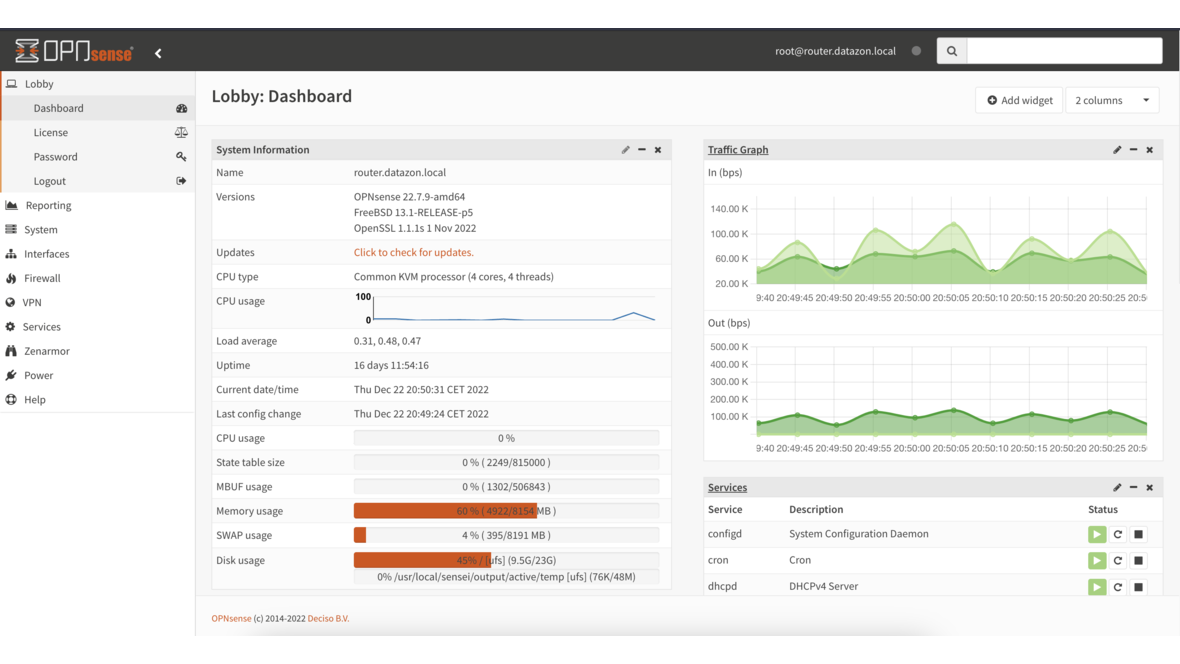
Guests, visitors, and external contractors often need internet access — but not access to the internal network. A captive portal on OPNsense solves this problem elegantly: Guests connect to the Wi-Fi and are redirected to a login page where they authenticate with a voucher code or their own credentials. Access is time-limited, bandwidth-restricted, and fully isolated from the production network.
Guest Network Architecture
A professional guest Wi-Fi consists of four components:
- VLAN for guests: Dedicated network segment, isolated from the production network
- Access point: Wi-Fi with a dedicated SSID that bridges into the guest VLAN
- Captive portal: Login page that enforces authentication
- Firewall rules: Allow only internet traffic, block everything internal
Network Topology
Internet
    │
┌───┴───┐
│OPNsense│──── VLAN 20: Servers (10.0.20.0/24)
│Firewall│──── VLAN 30: Clients (10.0.30.0/24)
│        │──── VLAN 70: Guests  (10.0.70.0/24) ◄── Captive Portal
└───┬───┘
    │
 Managed Switch (802.1Q Trunk)
    │
 Access Point
    ├── SSID: Company-Internal → VLAN 30
    └── SSID: Company-Guest    → VLAN 70
Step 1: Create Guest VLAN
If no guest VLAN exists yet, create it on OPNsense:
- Navigate to Interfaces → Other Types → VLAN
- Click + and configure:
- Parent: The physical interface to the switch (e.g.,
igc1) - VLAN Tag: 70
- Description: Guest_VLAN
- Parent: The physical interface to the switch (e.g.,
- Under Interfaces → Assignments, assign the new VLAN to an interface
- Configure the interface:
- IPv4: Static, 10.0.70.1/24
- Enable: Checked
DHCP for Guest VLAN
Under Services → DHCPv4 → Guest_VLAN:
- Range: 10.0.70.100 – 10.0.70.250
- DNS: 10.0.70.1 (OPNsense as DNS, for DNS filtering)
- Lease Time: 3600 (1 hour — short, since guests are temporary)
- Gateway: 10.0.70.1
Step 2: Firewall Rules for Guest VLAN
Rules follow the deny by default principle — only explicitly permitted traffic is allowed.
Guest_VLAN rules (order matters):
| No. | Action | Source | Destination | Port | Description |
|---|---|---|---|---|---|
| 1 | Allow | Guest_VLAN net | Guest_VLAN address | 53 (TCP/UDP) | DNS via OPNsense |
| 2 | Allow | Guest_VLAN net | Guest_VLAN address | 8443 (TCP) | Captive portal access |
| 3 | Block | Guest_VLAN net | RFC1918 networks | * | No access to private networks |
| 4 | Allow | Guest_VLAN net | * | 80, 443 | HTTP/HTTPS to internet |
| 5 | Block | Guest_VLAN net | * | * | Block everything else |
Rule 3 is critical: It blocks access to all private IP ranges (10.0.0.0/8, 172.16.0.0/12, 192.168.0.0/16), preventing guests from reaching servers, clients, or other VLANs.
Step 3: Enable Captive Portal
Navigate to Services → Captive Portal → Administration:
-
Click + to create a new zone:
- Enabled: Checked
- Interfaces: Guest_VLAN
- Authenticate using: Voucher / Local Database / RADIUS (as needed)
- Idle timeout: 30 minutes (automatic logout on inactivity)
- Hard timeout: 480 minutes (maximum session duration: 8 hours)
- Concurrent logins: 1 (one voucher = one device)
- SSL certificate: Select a valid certificate (e.g., from Let’s Encrypt)
-
Under Allowed addresses, add exceptions that should be accessible without authentication (e.g., your company website).
Step 4: Configure Voucher System
Vouchers are one-time codes distributed to guests. Each code has a defined validity period and can only be used once.
Under Services → Captive Portal → Vouchers:
-
Create a voucher group:
- Name: Day_Pass
- Validity: 480 (minutes = 8 hours)
- Quantity: 50
-
Generate vouchers: Click “Generate” — OPNsense creates 50 unique codes
-
Export vouchers: Codes can be exported as CSV and printed. Typical format for the reception desk:
╔═══════════════════════════════╗
║   Company Inc. - Guest Wi-Fi  ║
║                               ║
║   SSID: Company-Guest         ║
║   Code: A7X9-K2M4-P8L1       ║
║   Valid: 8 hours              ║
╚═══════════════════════════════╝
Voucher Types for Different Scenarios
| Type | Validity | Bandwidth | Use Case |
|---|---|---|---|
| Day Pass | 8 hours | 20 Mbit/s | Visitors, meetings |
| Week Pass | 7 days | 50 Mbit/s | External consultants |
| Event Pass | 4 hours | 10 Mbit/s | Conferences, training |
| Vendor Pass | 2 hours | 5 Mbit/s | Short visits |
Step 5: RADIUS Integration (Optional)
For larger environments, RADIUS integration is more practical than local vouchers. RADIUS enables centralized authentication and detailed accounting.
Install FreeRADIUS on OPNsense
- Under System → Firmware → Plugins, install
os-freeradius - Navigate to Services → FreeRADIUS → General: Enable the service
- Under Users, create user accounts:
- Username: guest_mueller
- Password: (secure password)
- Session-Timeout: 28800 (8 hours)
- Max-Bandwidth-Down: 20000000 (20 Mbit/s in bit/s)
Connect Captive Portal to RADIUS
-
Under System → Access → Servers, create a RADIUS server:
- Type: RADIUS
- Hostname: 127.0.0.1
- Shared Secret: (strong secret)
- Authentication Port: 1812
- Accounting Port: 1813
-
In the captive portal settings, change Authenticate using to the RADIUS server.
RADIUS Accounting
RADIUS accounting logs every session with start and end time, transferred data volume, and IP address. This is important for:
- Compliance: Proof of who was on the network and when
- Legal liability: Documentation of network usage
- Capacity planning: Analysis of bandwidth utilization
Step 6: Configure Bandwidth Limits
Without bandwidth limits, a single guest can consume the entire connection. OPNsense provides traffic shaping through pipes.
Pipe Configuration
Under Firewall → Shaper → Pipes:
-
Download pipe:
- Bandwidth: 20 Mbit/s
- Mask: source (per client)
- Description: Guest_Download
-
Upload pipe:
- Bandwidth: 5 Mbit/s
- Mask: source (per client)
- Description: Guest_Upload
Shaper Rules
Under Firewall → Shaper → Rules:
-
Download rule:
- Interface: Guest_VLAN
- Direction: in
- Target: Guest_Download Pipe
- Source: any
- Destination: Guest_VLAN net
-
Upload rule:
- Interface: Guest_VLAN
- Direction: out
- Target: Guest_Upload Pipe
- Source: Guest_VLAN net
- Destination: any
With the Mask: source setting, each client gets its own limit — 20 Mbit/s down and 5 Mbit/s up per device.
Step 7: Custom Landing Page
The default login page works, but a branded page leaves a more professional impression.
Under Services → Captive Portal → Templates:
- Download the default template
- Edit the HTML/CSS files:
- Add company logo
- Adjust colors
- Add terms of service
- Write a welcome message
Example landing page structure:
<div class="login-container">
    <img src="logo.png" alt="Company Inc." class="logo">
    <h1>Welcome to Guest Wi-Fi</h1>
    <p>Please enter your access code:</p>
    <form method="post" action="$PORTAL_ACTION$">
        <input type="text" name="auth_voucher" placeholder="Voucher Code">
        <button type="submit">Connect</button>
    </form>
    <div class="terms">
        <p>By using this network, you accept our
        <a href="/terms">Terms of Service</a>.</p>
    </div>
</div>- Pack the edited files as ZIP and upload the template
DNS Filtering for Guests
In addition to the captive portal, DNS-based content filtering via Unbound DNS on OPNsense is recommended:
- Install the
os-unbound-plus-dnsblplugin (if not already present) - Under Services → Unbound DNS → Blocklist, enable blocklists:
- Malware domains
- Phishing domains
- Optional: Advertising domains
- Ensure the guest VLAN can only use OPNsense DNS (firewall rule 1 allows DNS only to the OPNsense address)
Monitoring and Logging
Monitor Active Sessions
Under Services → Captive Portal → Sessions, you can see all active guest sessions:
- Username / voucher code
- IP address and MAC address
- Connection duration
- Transferred data volume
- Manual disconnect of individual sessions
Syslog Integration
Captive portal events can be sent to a central syslog server. Relevant events:
- Login attempts (successful and failed)
- Session timeouts
- Manual disconnects
- Voucher consumption
Common Issues and Solutions
| Problem | Cause | Solution |
|---|---|---|
| Portal page does not appear | DNS redirect missing | Force captive portal DNS through OPNsense |
| HTTPS warning in browser | Invalid certificate | Let’s Encrypt certificate for portal hostname |
| Guest cannot access internet | Firewall rule missing or wrong order | Check rules: DNS → Block RFC1918 → Allow HTTP/S |
| Voucher not working | Timezone wrong or voucher expired | Check system time and voucher validity |
| Slow connection | Traffic shaper too restrictive | Increase pipe bandwidth |
Conclusion
A professional guest Wi-Fi with OPNsense Captive Portal provides security through VLAN isolation, controlled access duration via vouchers or RADIUS, per-client bandwidth limits, and DNS filtering. The setup requires some effort, but the result is a guest network that is both secure and user-friendly. Guests receive straightforward internet access while the production network remains fully isolated.
More on these topics:
More articles
Backup Strategy for SMBs: Proxmox PBS + TrueNAS as a Reliable Backup Solution
Backup strategy for SMBs with Proxmox PBS and TrueNAS: implement the 3-2-1 rule, PBS as primary backup target, TrueNAS replication as offsite copy, retention policies, and automated restore tests.
OPNsense Suricata Custom Rules: Write and Optimize Your Own IDS/IPS Signatures
Suricata custom rules on OPNsense: rule syntax, custom signatures for internal services, performance tuning, suppress lists, and EVE JSON logging.
Systemd Security: Hardening and Securing Linux Services
Systemd security hardening: unit hardening with ProtectSystem, PrivateTmp, NoNewPrivileges, CapabilityBoundingSet, systemd-analyze security, sandboxing, resource limits, and creating custom timers.