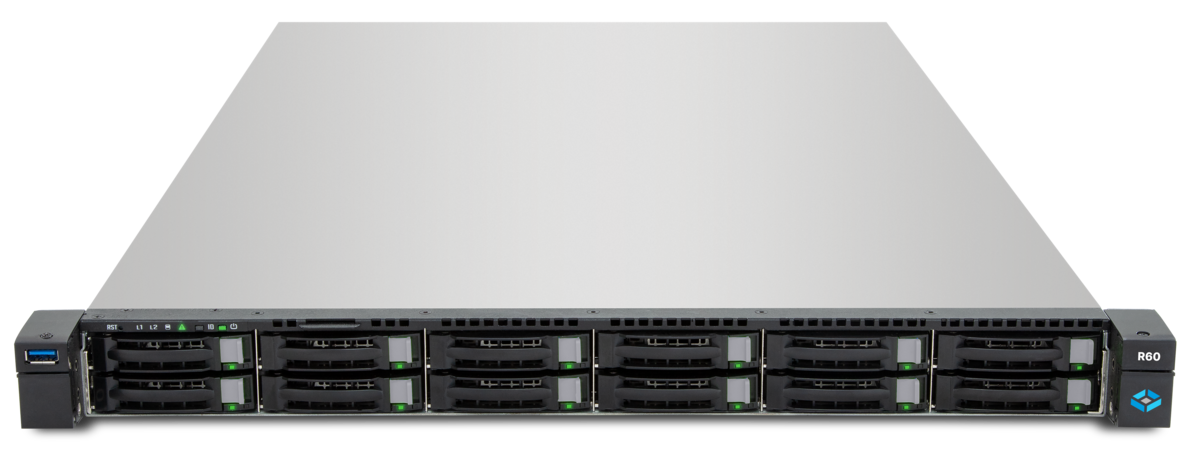
TrueNAS SCALE unifies storage and compute on a single platform. Beyond its primary role as a Network Attached Storage system, SCALE offers three virtualization technologies: Docker containers via the Apps infrastructure, LXC containers as lightweight Linux environments, and KVM-based VMs for fully isolated operating systems. But when should you use which method?
Overview: Three Technologies Compared
| Feature | Docker (Apps) | LXC Containers | KVM VMs |
|---|---|---|---|
| Isolation | Namespace-based | Namespace + cgroups | Full hardware virtualization |
| Kernel | Host kernel | Host kernel | Own kernel |
| Overhead | Minimal | Low | Moderate |
| Startup time | Seconds | Seconds | 30–60 seconds |
| OS support | Linux-based | Linux | Linux, Windows, BSD |
| GPU passthrough | Limited | No | Yes (IOMMU) |
| Use case | Microservices, apps | System services | Full OS instances |
Docker Containers on TrueNAS SCALE
Since Dragonfish (24.04), TrueNAS SCALE uses Docker as its native container runtime. The previous Kubernetes infrastructure was replaced with a leaner Docker Compose backend. Containers are deployed through the web GUI as Apps.
App Catalogs and Custom Apps
The official TrueNAS app catalog offers over 100 preconfigured applications. For custom images, the Custom App option is available:
# Example: Custom App as Docker Compose
services:
  nginx-proxy:
    image: nginx:alpine
    ports:
      - "8080:80"
    volumes:
      - /mnt/data/nginx/html:/usr/share/nginx/html:ro
      - /mnt/data/nginx/conf:/etc/nginx/conf.d:ro
    restart: unless-stopped
    deploy:
      resources:
        limits:
          cpus: "2.0"
          memory: 512M
Configuring Resource Limits
Containers without resource limits can destabilize the host. In TrueNAS SCALE, limits can be set directly in the app configuration:
- CPU limit: Maximum number of CPU cores (e.g.,
2.0for two cores) - Memory limit: Maximum RAM usage (e.g.,
512Mor2G) - CPU shares: Relative weighting during CPU contention
# Check running container limits
docker stats --no-stream
Network Configuration
Docker containers in TrueNAS SCALE use a bridge network by default. For direct network connectivity, macvlan or host networking can be configured:
services:
  pihole:
    image: pihole/pihole:latest
    networks:
      lan:
        ipv4_address: 192.168.1.50
    environment:
      TZ: "Europe/Berlin"

networks:
  lan:
    driver: macvlan
    driver_opts:
      parent: eno1
    ipam:
      config:
        - subnet: 192.168.1.0/24
          gateway: 192.168.1.1
Macvlan gives the container its own IP address on the physical network — ideal for services like Pi-hole or Home Assistant that need to be reachable on the LAN.
LXC Containers on TrueNAS SCALE
With TrueNAS SCALE Electric Eel (24.10), LXC containers were introduced as an alternative to Docker. LXC provides full Linux environments with their own init system, package manager, and user management.
When to Choose LXC Over Docker
LXC containers are particularly suited for:
- System services that expect a full Linux system (Samba, NFS server)
- Multi-process workloads that require an init process
- Development environments that mirror a full distribution
- Legacy applications that were never containerized
Creating an LXC Container
In the TrueNAS web GUI under Virtualization > Containers:
- Select image: Ubuntu 24.04, Debian 12, Alpine Linux, etc.
- Assign resources: CPU cores, RAM, disk quota
- Configure networking: Bridge or direct NIC assignment
- Storage mounts: Bind-mount ZFS datasets
# Manage LXC containers via CLI
incus list
incus exec my-container -- bash
incus config set my-container limits.cpu 4
incus config set my-container limits.memory 4GiB
Security: Unprivileged Containers
TrueNAS SCALE creates LXC containers as unprivileged containers by default. This means the root user inside the container is mapped to an unprivileged UID range on the host.
# Check UID mapping
incus config show my-container | grep -A5 raw.idmap
Unprivileged containers provide an important security advantage: even if an attacker gains root inside the container, they have no privileges on the host system.
KVM VMs: Full Virtualization
KVM VMs offer the highest isolation and flexibility. They are suited for:
- Windows servers and other non-Linux operating systems
- Workloads requiring GPU access (passthrough via IOMMU)
- Security-critical applications requiring maximum isolation
- Cluster nodes (e.g., Proxmox VE as a nested hypervisor)
Creating and Configuring a VM
Under Virtualization > Virtual Machines in the TrueNAS web GUI:
Name:          win-server-2025
CPU:           4 threads (type: host)
RAM:           8192 MB
Disk:          zvol on data-pool (64 GB, virtio-blk)
NIC:           virtio, bridge br0
Boot:          UEFI (OVMF)
VNC:           Enabled (port 5900)
Important: Set the CPU type to host to pass native CPU features through to the VM. This significantly improves performance compared to the default qemu64 type.
Setting Up GPU Passthrough
For GPU-accelerated workloads (Plex transcoding, AI inference, CAD), a dedicated GPU can be passed through to a VM via IOMMU:
# 1. Enable IOMMU in BIOS (Intel VT-d / AMD-Vi)

# 2. Enable IOMMU in boot configuration
# In /etc/default/grub:
GRUB_CMDLINE_LINUX_DEFAULT="intel_iommu=on iommu=pt"

# 3. Check IOMMU groups
for d in /sys/kernel/iommu_groups/*/devices/*; do
  n=${d#*/iommu_groups/*}; n=${n%%/*}
  printf 'IOMMU Group %s: ' "$n"
  lspci -nns "${d##*/}"
done

# 4. Block GPU drivers on host (use vfio-pci)
echo "options vfio-pci ids=10de:2484,10de:228b" > /etc/modprobe.d/vfio.conf
Then assign the GPU to the VM under GPU Devices in the TrueNAS GUI. The VM gets exclusive access to the GPU.
VirtIO Drivers for Windows
Windows VMs require VirtIO drivers for optimal performance:
- Download the VirtIO ISO from
fedorapeople.org - Attach it as a second CD-ROM to the VM
- Load the drivers during Windows installation
- After installation, install the QEMU Guest Agent
# Check VirtIO Guest Agent service (PowerShell inside the Windows VM)
Get-Service QEMU-GA | Select-Object Status, StartType
Sandboxing and Security
Docker Security
services:
  app:
    image: myapp:latest
    security_opt:
      - no-new-privileges:true
    read_only: true
    tmpfs:
      - /tmp
    cap_drop:
      - ALL
    cap_add:
      - NET_BIND_SERVICE
Fundamental rules for Docker on TrueNAS:
no-new-privileges: Prevents privilege escalationread_only: Filesystem is read-only (use tmpfs for temporary data)cap_drop: ALL: Remove all Linux capabilities, add back only what is needed- No
privileged: true: Never, unless absolutely unavoidable
Network Isolation
For security-critical containers, network segmentation is recommended:
networks:
  frontend:
    driver: bridge
  backend:
    driver: bridge
    internal: true  # No internet access

services:
  web:
    networks: [frontend, backend]
  database:
    networks: [backend]  # Only reachable internally
Best Practices for TrueNAS Virtualization
Resource Planning
A proven rule of thumb for resource allocation:
- TrueNAS system: Reserve at least 2 CPU cores and 8 GB RAM
- ZFS ARC: Plan for at least 1 GB RAM per TB of storage
- VMs/containers: Assign remaining resources, never overcommit
# Check current resource usage
free -h
arc_summary | head -30
docker stats --no-stream
Storage Configuration
Dedicated ZFS datasets are recommended for containers and VMs:
# Dataset structure for container data
zfs create data-pool/apps
zfs create data-pool/apps/nginx
zfs create data-pool/apps/postgres
zfs create data-pool/vms

# Separate volblocksize for VM zvols
zfs set volblocksize=64K data-pool/vms
Datasets instead of a single directory provide independent snapshots, quotas, and compression settings per application.
Backup Strategy
Regardless of the virtualization method:
- Docker apps: Back up volumes and Compose files via ZFS snapshots
- LXC containers: Incus export or ZFS snapshot of the container dataset
- KVM VMs: ZFS snapshot of the zvol, QEMU Guest Agent for consistent snapshots
# Snapshot all app data
zfs snapshot -r data-pool/apps@backup-$(date +%Y%m%d)

# VM snapshot with freeze/thaw (consistent)
virsh domfsfreeze win-server-2025
zfs snapshot data-pool/vms/win-server-2025@backup-$(date +%Y%m%d)
virsh domfsthaw win-server-2025
Conclusion
TrueNAS SCALE is more than a NAS — it is a versatile platform for storage and compute. Docker is ideal for microservices and preconfigured apps, LXC for full Linux environments with minimal overhead, and KVM VMs for maximum isolation and non-Linux systems. With thoughtful resource planning and security configuration, you can build a powerful home lab or production business server that unifies storage and virtualization on a single machine.
More on these topics:
More articles
Backup Strategy for SMBs: Proxmox PBS + TrueNAS as a Reliable Backup Solution
Backup strategy for SMBs with Proxmox PBS and TrueNAS: implement the 3-2-1 rule, PBS as primary backup target, TrueNAS replication as offsite copy, retention policies, and automated restore tests.
TrueNAS with MCP: AI-Powered NAS Management via Natural Language
Connect TrueNAS with MCP (Model Context Protocol): AI assistants for NAS management, status queries, snapshot creation via chat, security considerations, and future outlook.
ZFS SLOG and Special VDEV: Accelerate Sync Writes and Optimize Metadata
ZFS SLOG (Separate Intent Log) and Special VDEV explained: accelerate sync writes, SLOG sizing, Special VDEV for metadata, hardware selection with Optane, and failure risks.